![kyocera-logo-1.svg]](https://kyoceradocumentsolutions.com.au/hubfs/jan%202021/kyocera-logo-1.svg)
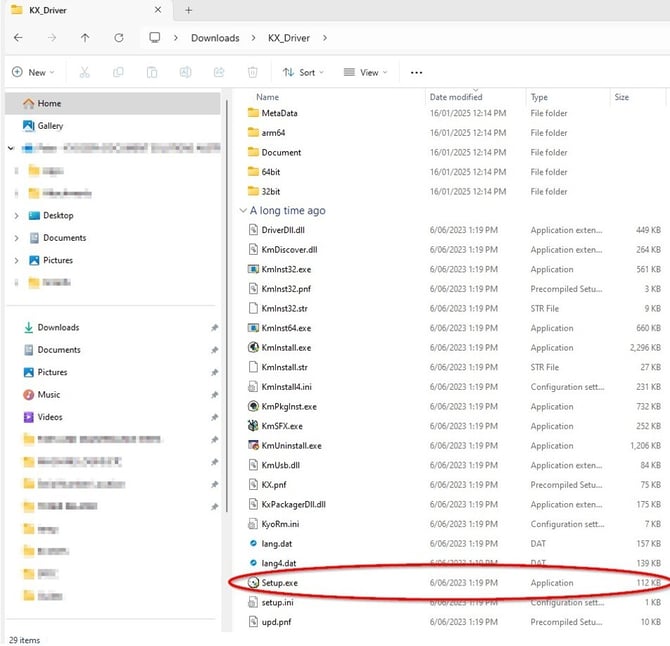
b. Run “Setup.exe” (Application) – circled in ‘red’ below:
1. Download the latest drivers from the Kyocera website https://downloads.kyoceradocumentsolutions.com.au/Drivers/KX_Driver.zipa. Open your downloads folder
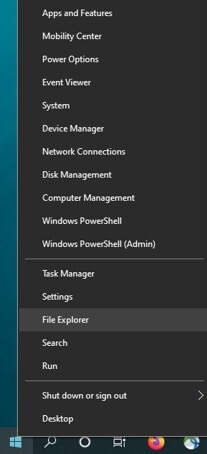
i. Right Click the Windows Start Button and select “File Explorer”
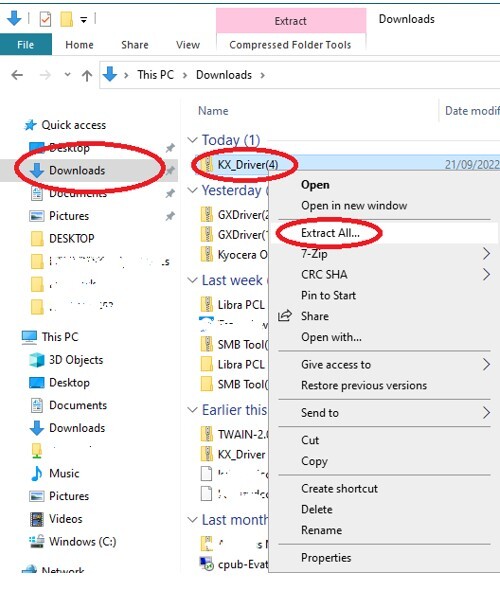
b. Left click on the Downloads Folder, Right click the Driver Zip file, select “Extract All”
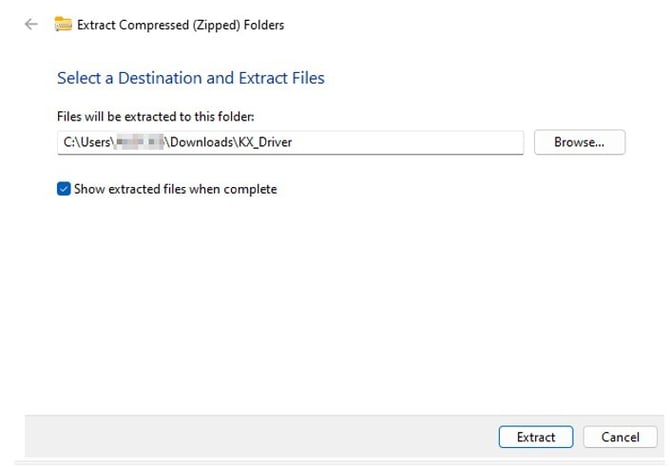
c. Choose a location and extract the files.
2. Install the latest drivers
a. Go to the location where you saved the driver files
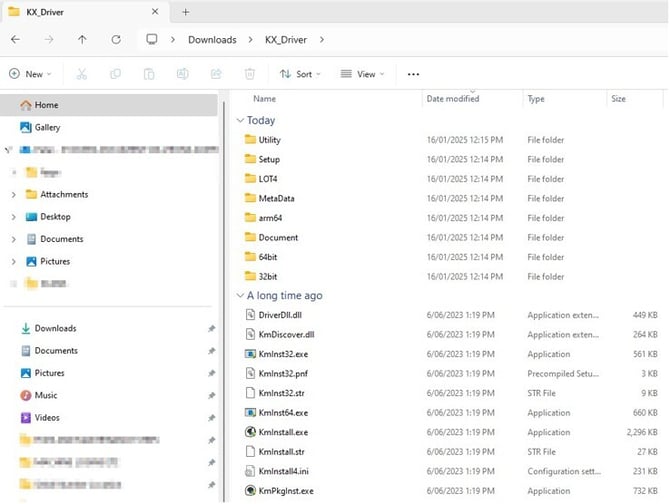
b. Run “Setup.exe” (Application) – circled in ‘red’ below:
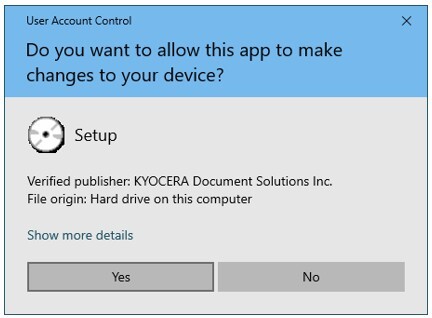
c. Click “Yes” on the User Account Control prompt
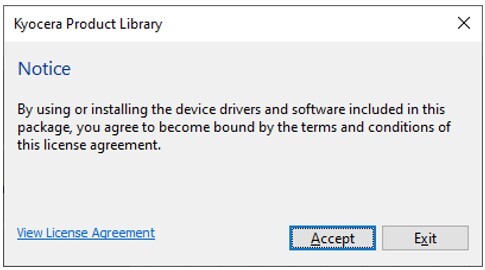
d. This will open the “Kyocera Product Library”
i. Click “Accept”
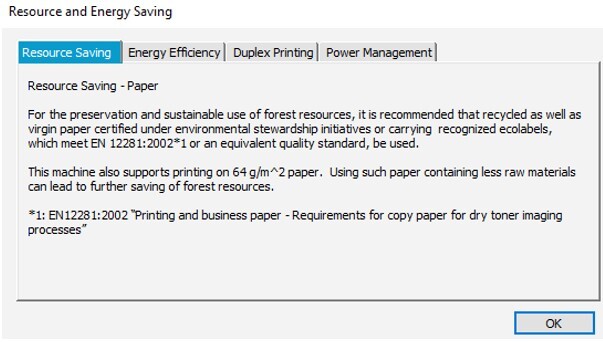
ii. Click "Ok"
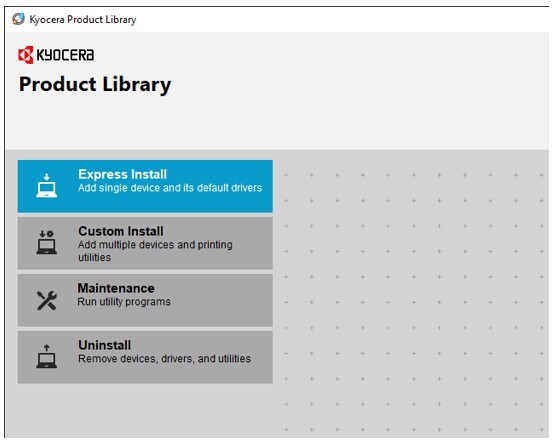
e. Select "Express Install"
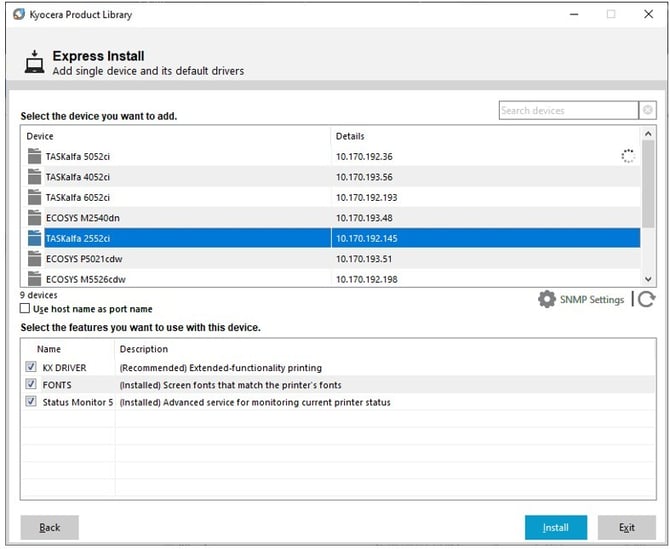
f. Click on your Machine in the list, ensure "KX Driver" is selected, then click "install"
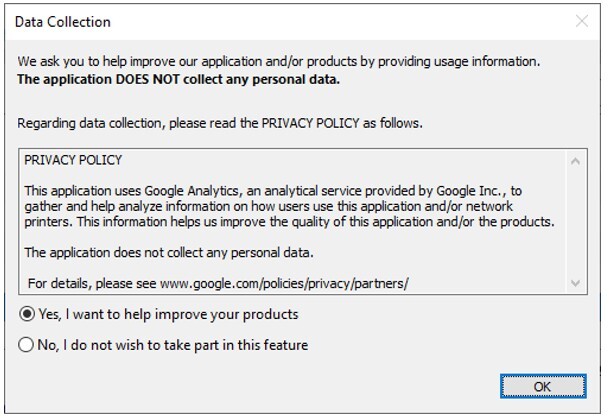
g. Choose Yes or No, then click "Ok" for the Data Collection Prompt
h. The installation process will begin
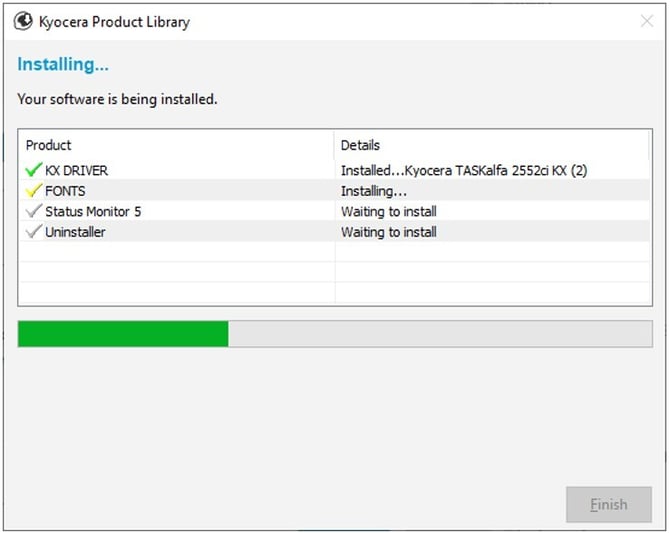
i. Allow the installation to complete, then print a test page
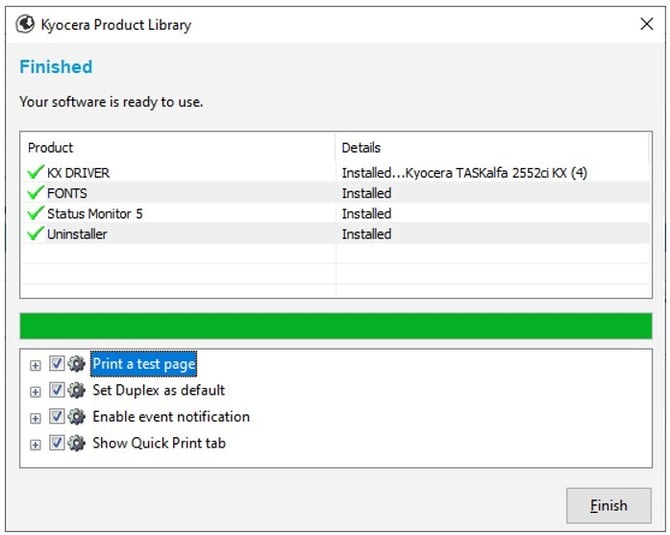
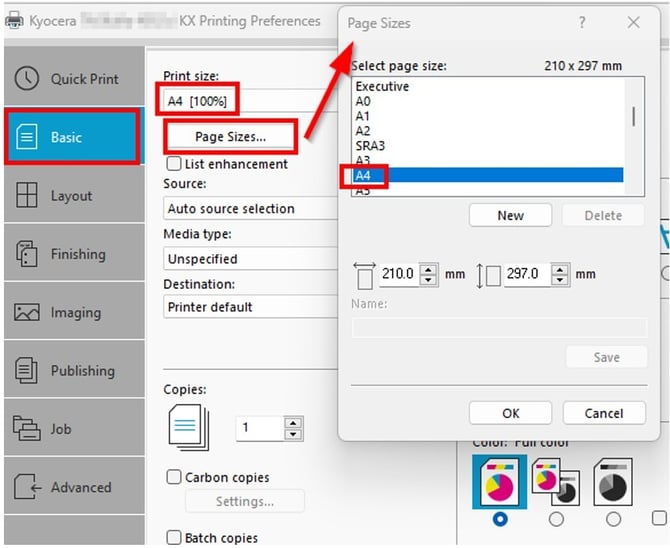
If the test page does not print – check the ‘Printing preferences’ set – the recommended default settings are shown below:
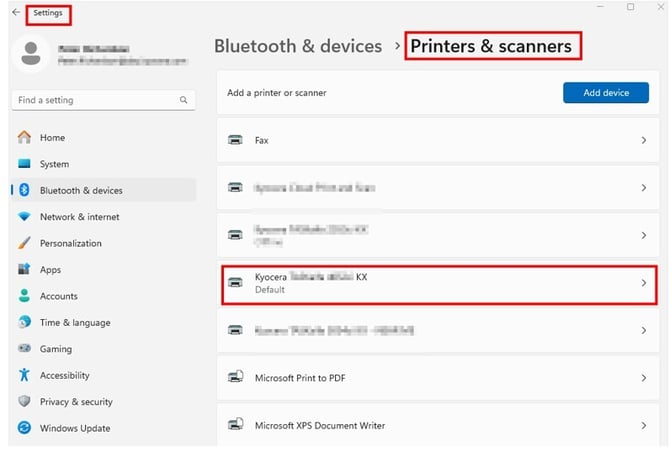
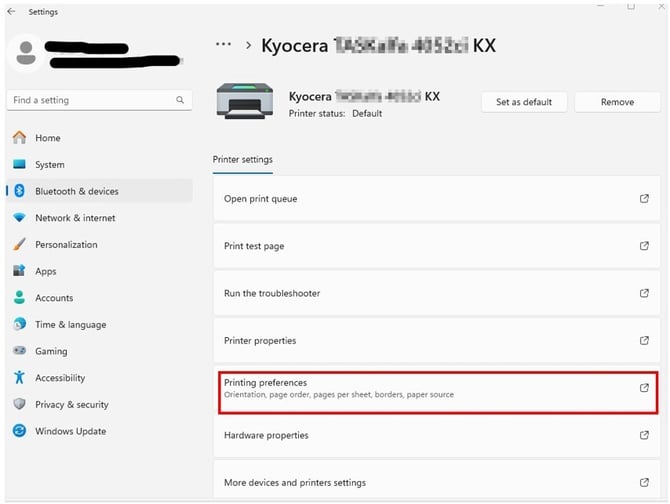
Printing Preferences:
Further assistance
If you require further assistance, please feel free to contact us directly via:
- Chat: the chat in the bottom right corner of our website. ↘️
- Phone: to speak to a member of the Kyocera support team, call our helpline on:
- Australia: 135 962 and choose option 3
- New Zealand: 0800 459 623
Phone Support hours are Monday to Friday 9am to 5pm local time across Australia and New Zealand (excl public holidays).
Chat Support hours are 9am to 5pm AEST/AEDT.