![kyocera-logo-1.svg]](https://kyoceradocumentsolutions.com.au/hubfs/jan%202021/kyocera-logo-1.svg)
1. Download Mac Print Driver from Kyocera Download Centre.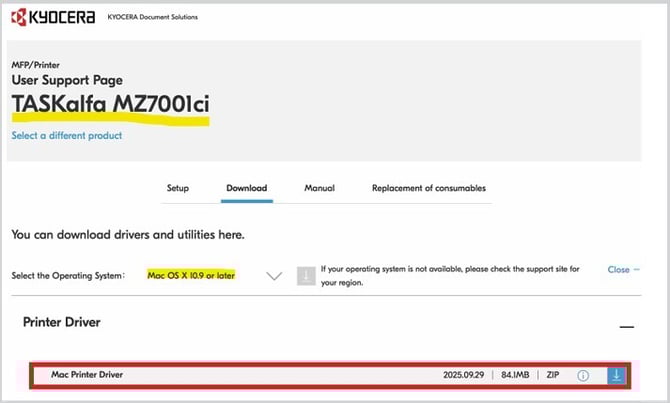
2. Install the Mac Print Driver on MacOS.
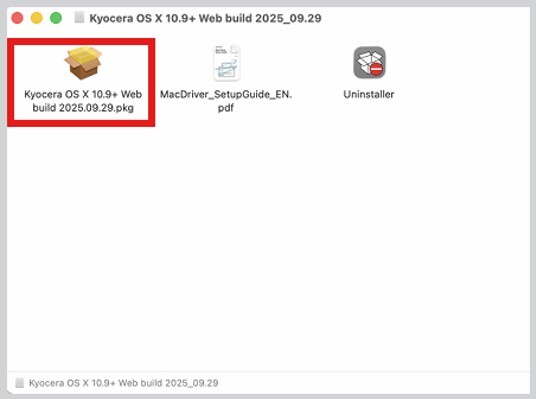
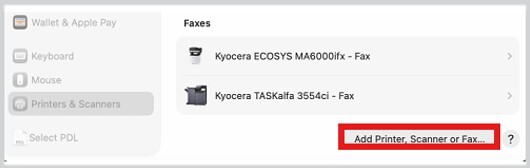
3. App Printer from the Printers & Scanners on MacOS.
4.Select the O icon for ‘Line Printer Daemon – LPD protocol.
5.Enter the IP Address on the device.
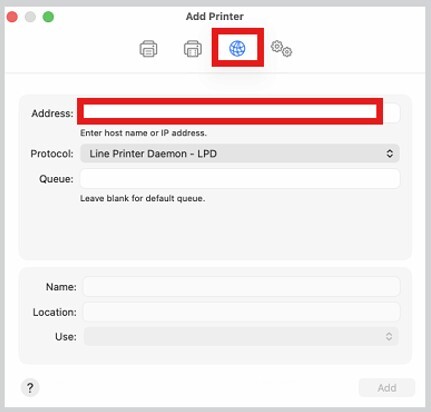
E.g. Kyocera TASKalfa MZ7001ci KPDL
7. Enter a name g. showroom, and then select Add.
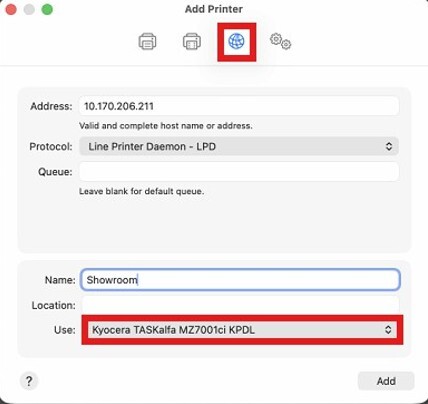
8. Check or change the options to the correct setting.
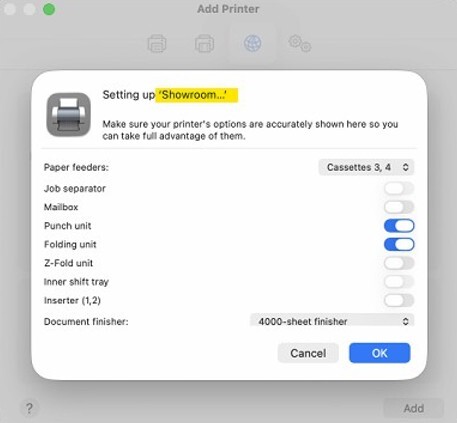
9. Review the setting on the printer and it will have the PDL as KPDL.
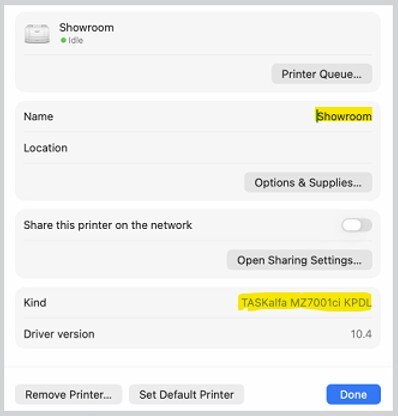
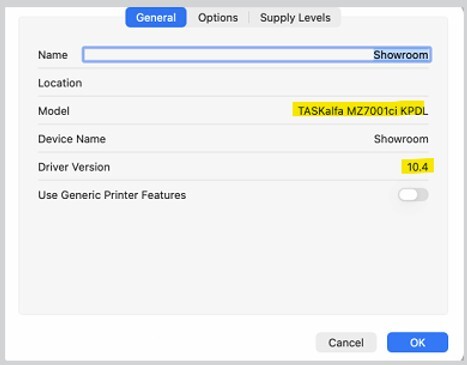
10. Run a test job by using the Print Panel.
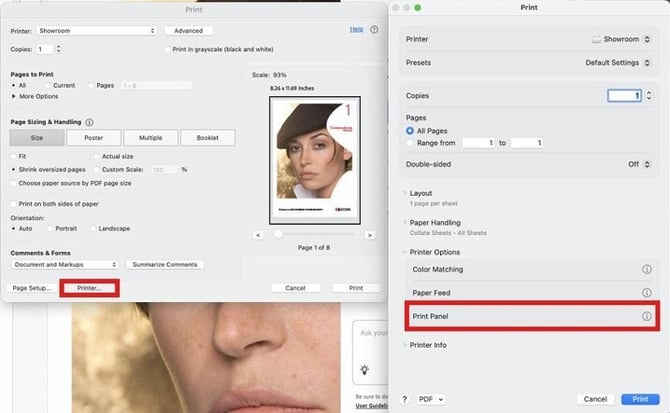
11. Open a file, and select print.
12. Select the Printer … then scroll down the Printer Options and select Print Panel.
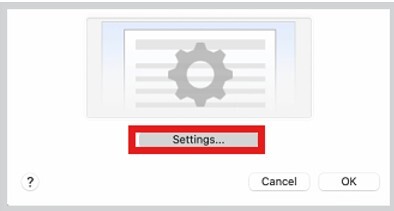
13. Select the Setting …
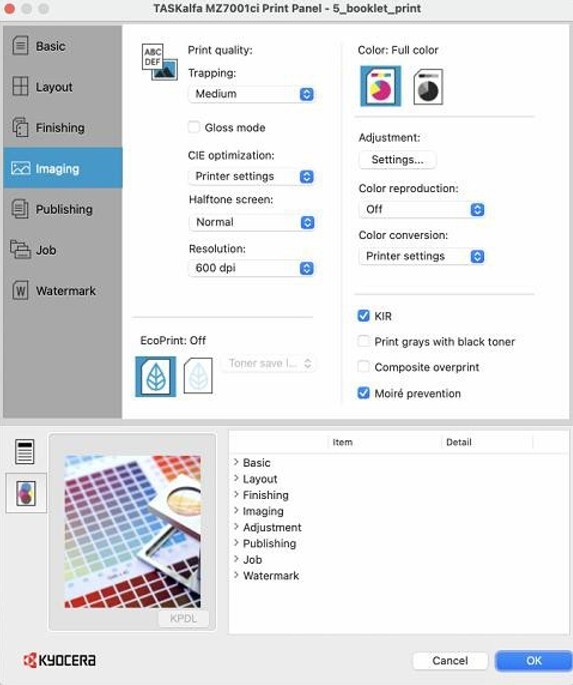
14. Change your setting in the Printer properties and select OK to print the file.
Further assistance
If you require further assistance, please feel free to contact us directly via:
- Chat: the chat in the bottom right corner of our website. ↘️
- Phone: to speak to a member of the Kyocera support team, call our helpline on:
- Australia: 135 962 and choose option 3
- New Zealand: 0800 459 623
Phone Support hours are Monday to Friday 9am to 5pm local time across Australia and New Zealand (excl public holidays).
Chat Support hours are 9am to 5pm AEST/AEDT.