![kyocera-logo-1.svg]](https://kyoceradocumentsolutions.com.au/hubfs/jan%202021/kyocera-logo-1.svg)
True printer quality is defined by more than just the absence of streaks or spots. It is the result of precision engineering, correct resolution settings (DPI), and the use of high-quality consumables. At Kyocera, our ECOSYS technology uses long-life ceramic drums and micro-particle toner to deliver consistent, professional-grade output. However, even the best devices require care. Factors like humidity, non-genuine toner, and paper type can significantly impact your print quality.
The way you resolve quality issues with your printer will depend on your printer model.
If you are experiencing print quality issues, start by visiting the Kyocera website Support Download Centre.
Enter your printer model name and choose the correct model as it appears in the drop-down list.
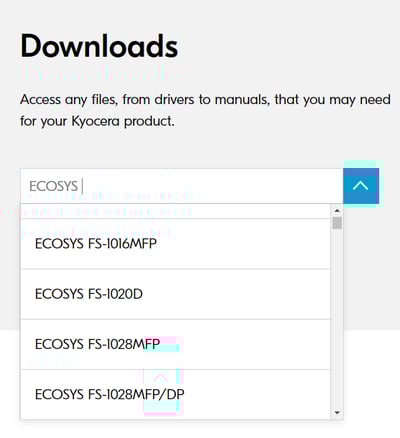
Once you have chosen your printer model, select Documents. Then select User Manual and open the Operation Guide for your printer. 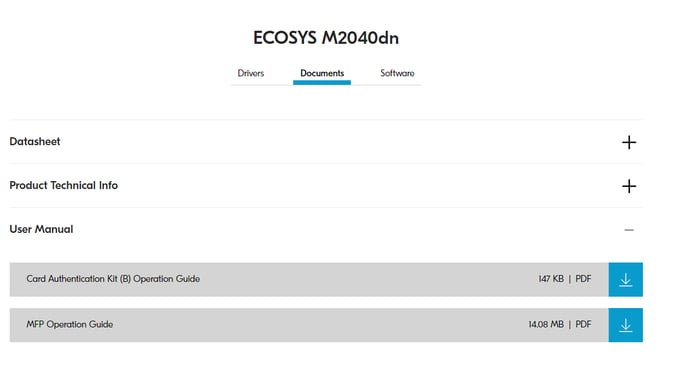
Once you have opened the Operation Guide, click on Troubleshooting and then select Troubleshooting again under the tab in the table of contents.
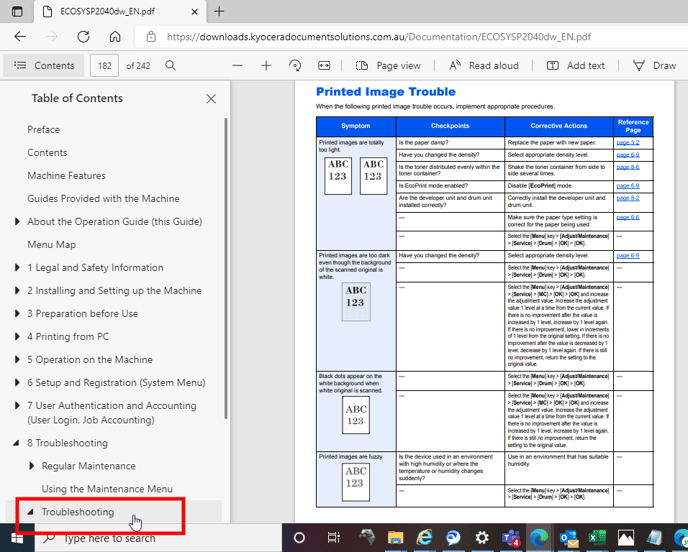
Now look for the issue or symptom that relates to your print quality and carefully follow the instructions.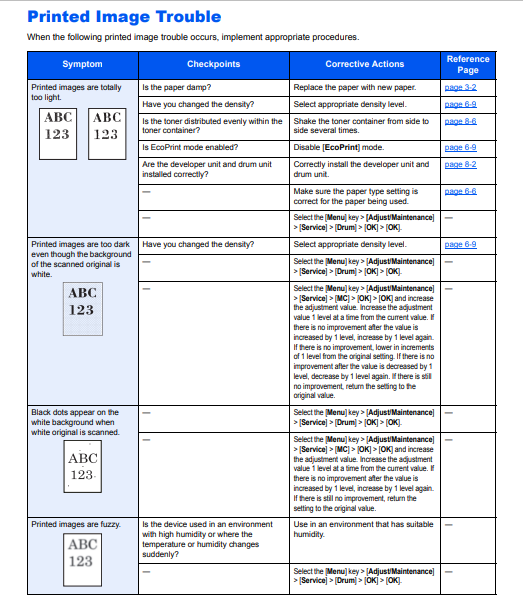
Frequently asked questions:
How do I change the print quality resolution (DPI)?
You can adjust the printer resolution (Dots Per Inch) in your printer driver settings. For most Kyocera models, navigate to Printing Preferences > Imaging to switch between 600dpi (standard) and 1200dpi (high quality) for sharper text and graphics. For detailed steps, refer to the Operation Guide for your model.
Why are my prints fading or too light?
Fading often occurs if "EcoPrint" or "Draft Mode" is enabled to save toner. Check your print driver settings first. If settings are correct, it may indicate the toner is near empty or the drum unit requires cleaning. See our guide on choosing cost-effective features for more on draft modes.
Does non-genuine toner affect print quality?
Yes. Kyocera genuine toner is engineered with specific ceramic beads that polish the drum with every rotation. Using non-genuine toner can lack these agents, leading to "backgrounding" (grey pages) or streaks, and may damage the long-life drum unit. Learn more about the benefits of genuine toner.
How do I clean my Kyocera printer to improve quality?
Regular cleaning of the slit glass and corona wire can resolve many issues like streaks or lines. Most ECOSYS devices have a built-in cleaning rod for this purpose. Please consult the Support Centre to download the maintenance manual for your specific device.
Further assistance
If you require further assistance, please feel free to contact us directly via:
- Chat: the chat in the bottom right corner of our website. ↘️
- Phone: to speak to a member of the Kyocera support team, call our helpline on:
- Australia: 135 962 and choose option 3
- New Zealand: 0800 459 623
Phone Support hours are Monday to Friday 9am to 5pm local time across Australia and New Zealand (excl public holidays).
Chat Support hours are 9am to 5pm AEST/AEDT.