![kyocera-logo-1.svg]](https://kyoceradocumentsolutions.com.au/hubfs/jan%202021/kyocera-logo-1.svg)
Background
From April 2026, Microsoft plans to default the 365 environments to use OAuth2 modern authentication, the following settings will be required to scan to email.
Typically, a User’s normal email account is not used for the printer to scan to email. However, in smaller home-office environments this can be considered instead of creating a dedicated Microsoft 365 account for scanning purposes.
Configuration Steps
- Configure the Microsoft 365 Personal account you wish to use as the Sender address
- Configure the Printer Scan to email settings
Step 1 – Configure the Microsoft 365 Personal account
- Open the Microsoft Outlook web application via a Browser
- Login using the 365 account you wish the Printer to use as the ‘Sender address’
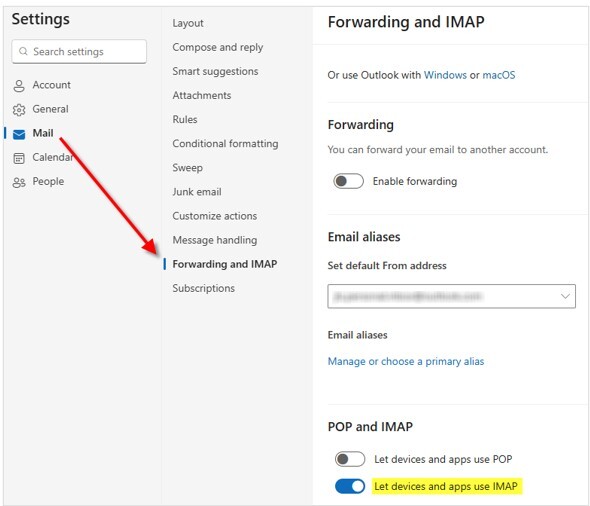
- Select Settings gear icon in top RH Corner > Mail > Forwarding and IMAP
- If prompted, Sign in to verify your account
-
Enable the Let device and apps use IMAP setting and Save
Further assistance
If you require further assistance, please feel free to contact us directly via:
- Chat: the chat in the bottom right corner of our website. ↘️
- Phone: to speak to a member of the Kyocera support team, call our helpline on:
- Australia: 135 962 and choose option 3
- New Zealand: 0800 459 623
Phone Support hours are Monday to Friday 9am to 5pm local time across Australia and New Zealand (excl public holidays).
Chat Support hours are 9am to 5pm AEST/AEDT.