![kyocera-logo-1.svg]](https://kyoceradocumentsolutions.com.au/hubfs/jan%202021/kyocera-logo-1.svg)
Why?
“To help keep your account secure, starting May 30, 2022, Google will no longer support the use of third-party apps or devices which ask you to sign in to your Google Account using only your username and password.” https://support.google.com/accounts/answer/6010255?hl=en
Many scanning devices have been configured to send scanned images via email with the use of Google’s GMAIL SMTP servers (smtp.gmail.com). This has proved a reliable solution for clients solely utilising GMAIL for their organisiation’s mail needs and/or clients who do not manage their own mail servers.
Many scanning devices may be setup utilising smtp.gmail.com as the mail server and utilising the “Less Secure Apps” function of Gmail.
In line with best practice relating to data security, Google are discontinuing the use of the “Less Secure Apps” function which currently allow the devices to utilise solely the credentials used for a gmail account to send scanned images via email.
After the effective change date above, Google are transitioning to “APP password” type of system, where devices that do not support multifactor authentication, are able to have a unique password generated and utilised for only the required portion of Google Services (in this case, GMAIL).
After the date stated above, Kyocera (and all other scanning devices) still utilising the Less Secure App function of Gmail will cease to be able to scan to email until the following steps are performed. This may present as an error being displayed on the Kyocera MFD after performing a scan to email.
Its important to note that this is a change outside of the control of Kyocera and other scanner vendors and not to be considered a fault or ‘incompatibility’, and even though this guide advises how to enable APP Passwords within Gmail settings and adjust the Kyocera settings to suit, due diligence and investigation should be undertaken by the client and their ICT partner to ensure suitability for their environment and security needs.
How?
The primary steps required are to generate an App Password from within your Gmail settings for the mailbox used to send scans via the Kyocera device.
You will require the username and password for your Gmail account and to be able to log into the Gmail settings to make this change.
This change can only be implemented if 2FA (multifactor authentication) is enabled for the Gmail account which may also affect other services utilising Gmail. Client investigation may need to be required to ensure other services are not affected or are reconfigured to suit.
Google’s instructions can be found at https://support.google.com/accounts/answer/185833?hl=en
Step 1. Log into your Gmail account from a workstation
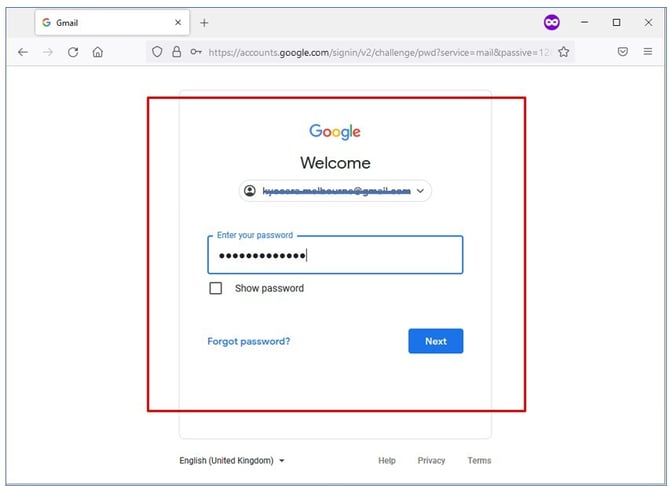
Step 2. Go to the Manage your Google Account page
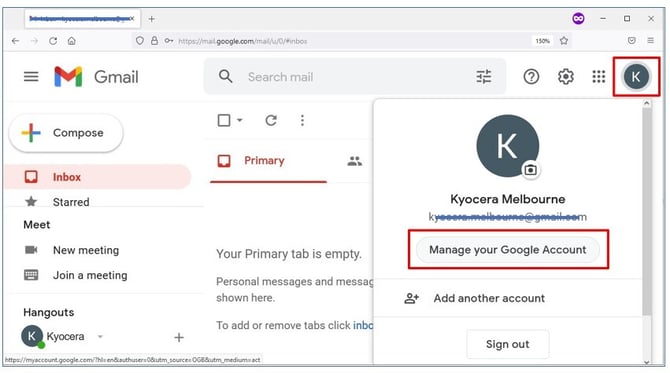
Step 3. Select Security from the left side navigation bar, then select App Passwords under the heading of Signing in to Google.
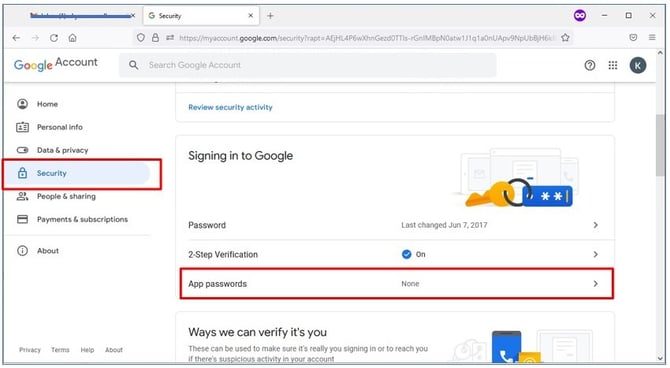
Step 4. Select Mail from the list of Google services and Select Other (Custom Name) from the list of devices.
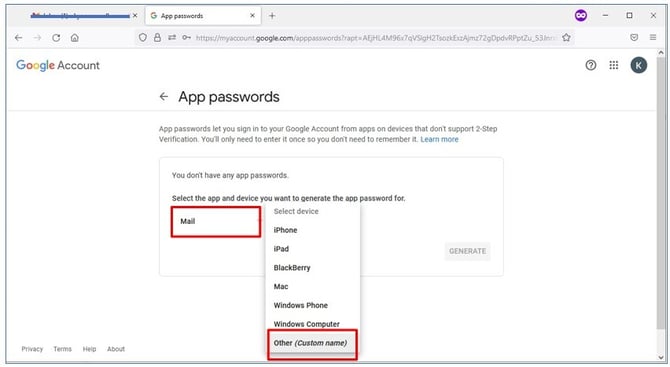
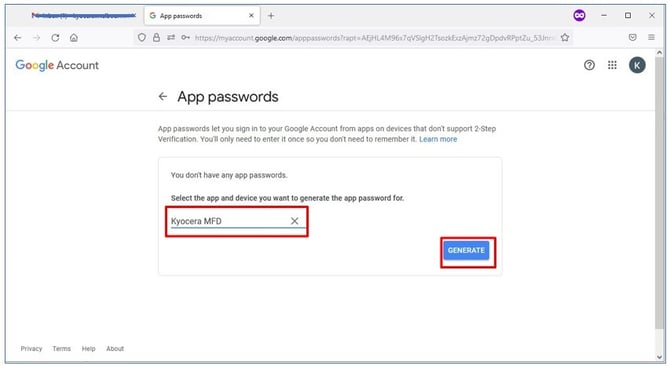
Step 5. Type in a friendly name (a name that you can recognise later on as to what device is using this password) and press Generate.
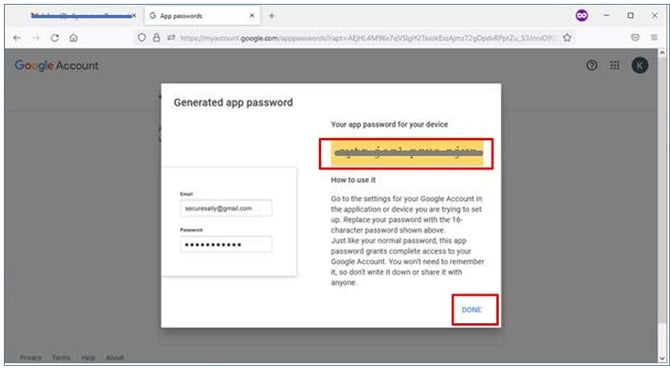
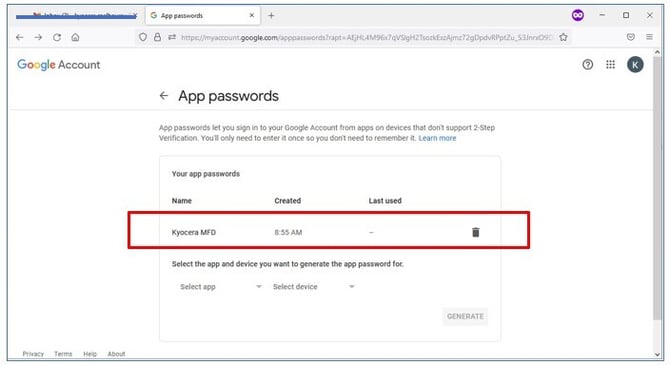
Step 6. A Password will be generated for you (please write this down or copy to a notepad document), as you will not be able to retrieve this password after you press Done. If you need the password again, you will need to delete the Device you just created and start again.
Step 6. Log into the Kyocera device’s webpage (IP address of the device into a browser on your workstation), and log in as Admin
- For most devices:
Default username = Admin, Default password = Admin (both with capital A)
- For select new devices (TASKalfa 54 series):
Default username = Admin, Default password = Serial number of the device (case sensitive).
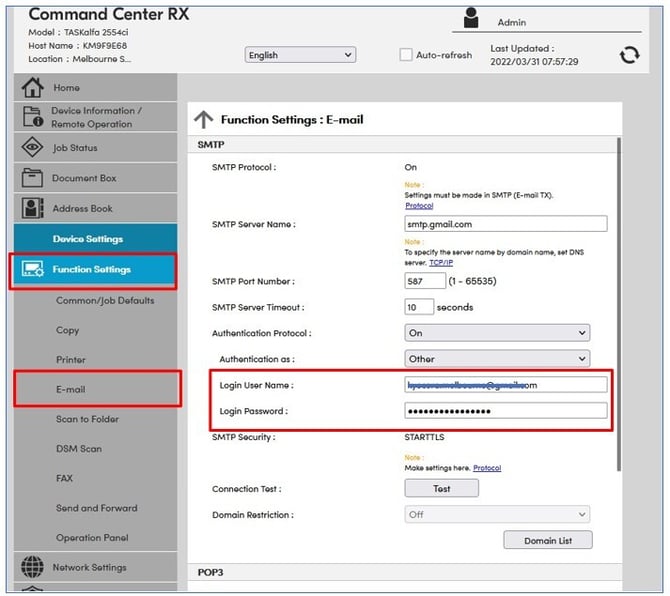
Select Function Settings from the left side navigation bar, and select E-Mail.
Confirm that username listed is the email address used in earlier steps and change the password to the App Password you have generated.
Press Submit to save.
Further assistance
If you require further assistance, please feel free to contact us directly via:
- Chat: the chat in the bottom right corner of our website. ↘️
- Phone: to speak to a member of the Kyocera support team, call our helpline on:
- Australia: 135 962 and choose option 3
- New Zealand: 0800 459 623
Phone Support hours are Monday to Friday 9am to 5pm local time across Australia and New Zealand (excl public holidays).
Chat Support hours are 9am to 5pm AEST/AEDT.